


2024 Competitive Grant Cycles
NEW in 2024
- Read our 2024 Grant Making Guidelines.
- The Spring Grant Cycle is now OPEN with the Growing Communities Letter of Inquiry (LOI) and the Early Childhood Education Application!
- All applications are made via our grants management system, Foundant . **YOU MUST REGISTER IN ORDER TO APPLY**
- If you already have an account, please do not make a second account. If you're having trouble signing in to an account, contact Quetzali at [email protected]
- Foundant Resources:
- Log-in page
- Foundant applicant tutorial
- LCCF recorded an information session
- Passcode: 1aa%Ceqk
- Collaborate function tutorial
- Please add [email protected] as a contact in your email so that messages from our system do not go to spam
- Please note that the "Apply" button in the system is at the top left of the page next to the home icon
- The Foundation released a new Program & Community Investment Strategy, which will guide our work, priorities and investments in the coming years – more info in our 2024 Grant Making Guidelines!
- The name of our Basic Human Needs priority area was changed last year to Growing Communities to be more inclusive of different communities’ needs. This priority area includes a letter of inquiry.
- The Early Childhood Education priority area has been moved from the Fall Grant Cycle to the Spring Grant Cycle. This means that Early Childhood Education will reopen on January 2024 – for more info, read our Grant Making Guidelines.
- The maximum grant request for the 2024 Growing Communities priority area is $30,000.
Application Process and Timelines
All grants are awarded for one year.
LCCF’s previous policy stated that organizations were eligible for five consecutive years of funding followed by one required rest year. To better align with our shift towards trust-based philanthropy, we are eliminating this rule, leaving no limit on consecutive years of funding.
Please keep in mind, however, that LCCF is committed to welcoming new grantees each year, particularly community-based grassroots organizations led by impacted community members.
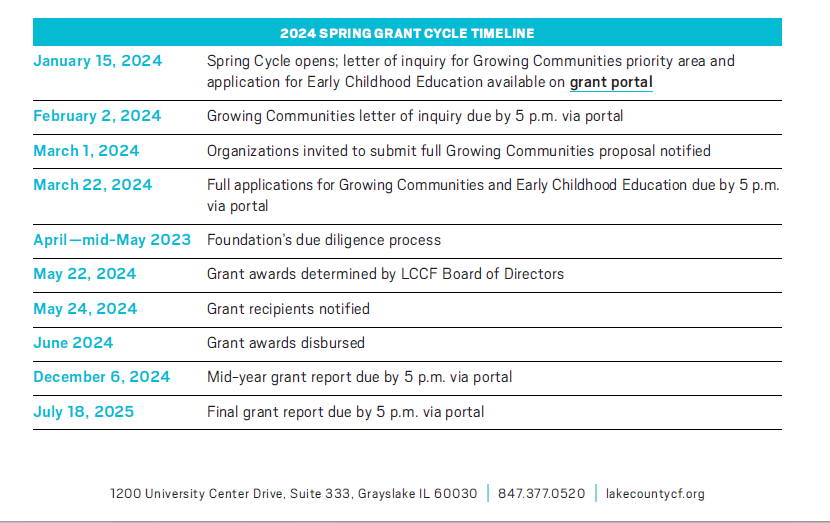
Growing Communities (formerly Basic Human Needs) Grant Cycle application process:
Step 1: Registration in Foundant - Register your organization in Foundant or login to your existing account HERE. Please note, after registering, you will be able to change user information, but not organizational information (organizational address, name/contact for executive director, etc.). To update that information, you will need to contact Quetzali at [email protected].
Step 2: Submission of letter of inquiry (LOI) - The Foundation requires applicants to complete a brief LOI in the Foundant system. Foundation staff and Grants and Community Outreach Committee will review LOIs for alignment with the Foundation's goals and priorities and will select organizations to move forward in the due diligence process.
Step 3: Notification - Foundation staff will notify organizations selected to complete full proposals by mid-February. Full applications will be due in the Foundant system on March 22, 2024.
Step 4: Due Diligence - Organizations invited to move forward, will participate in the due diligence process, which may include a site visit (virtual or in-person).
Step 5: Grant Decision - The Foundation's board of directors determines the final grant awards. Applicants will receive an email notification of award/decline by May 24, 2024.
Step 6: Reporting of Outcomes - Grant recipients are required to report on outcomes at the mid-term and end of the grant cycle.
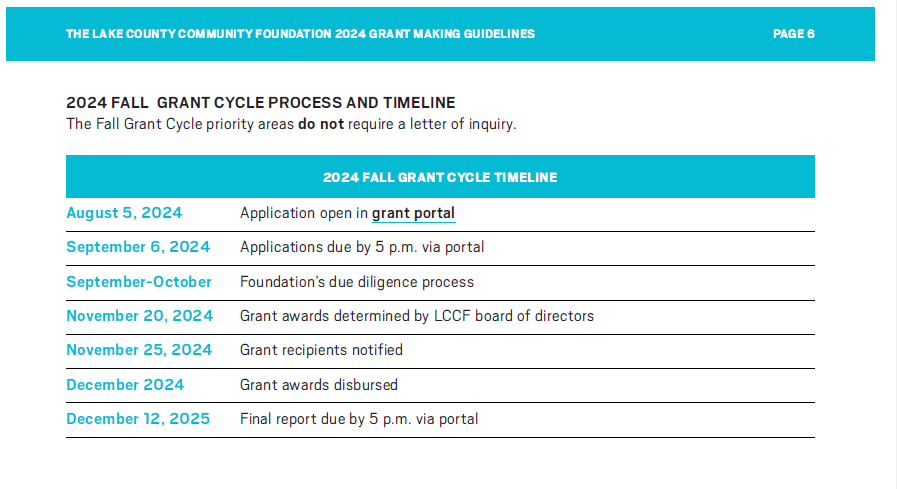
Fall Grant Cycle (Capacity Building, Leadership Development and Animal Welfare priority areas):
- Due to limited resources, LCCF is temporarily eliminating the Capacity Building priority area in 2024 so that we can concentrate our resources to support our work and investment in our Growing Communities priority area. We hope to reintroduce the Capacity Building priority area sometime in the future.
Step 1: Registration in Foundant - Register your organization in Foundant or login to your existing account HERE. Please note, after registering, you will be able to change user information, but not organizational information (organizational address, name/contact for executive director, etc.). To update that information, you will need to contact Quetzali at [email protected].
Step 2: Submission of Application - The Fall Grant Cycle application will be available in Foundant in early August. No LOI is required. Foundation staff will review the proposal to assess the request's alignment with the Foundation's goals and priorities, and will then determine whether the application advances to Step 3.
Step 3: Due Diligence - Foundation staff will review all proposals and organizations will be notified before October if they have been selected to proceed in the due diligence process, which may include a site visit (virtual or in-person).
Step 4: Grant Decision - The Foundation's board of directors determines the final grant awards. Applicants will receive an email notification of award/decline by November 25.
Step 5: Reporting of Outcomes - Grant recipients are required to report on outcomes at the mid-term and end of the grant cycle in the Foundant system.